Contents
- Introduction
- Prerequisites
- Support and Resources
- Objective
- Azure Portal Access
- Step 1: Access Microsoft Defender for Cloud
- Step 2: Review the Secure Score
- Step 3: Enabling Workload Protections
- Step 4: Configuring Policies and Recommendations
- Step 5: Implementing Recommendations and Remediations
- Step 6: Continuous Monitoring and Alerting
- Step 7: Configure Continuous Export
- Step 8: Validate Improvements
- Conclusion
- Resources and Next Steps with Microsoft Defender for Cloud
Introduction
In this blog post, “Understanding and Configuring Microsoft Defender for Cloud,” we explore how this cloud-native solution protects workloads across Azure, on-premises, and multi-cloud environments. Microsoft Defender for Cloud offers insights, recommendations, and automated threat detection to enhance your security posture.
As hybrid and multi-cloud strategies grow, robust security is essential. Microsoft Defender for Cloud simplifies this by providing a unified security view, intelligent threat protection, and actionable guidance via Secure Score, helping you prioritise remediation, address emerging threats, and maintain compliance.
We’ll cover key features like accessing the platform, using Secure Score, configuring protections, and implementing best practices. Subscribe for updates and boost your cloud security today!
Prerequisites
Before we begin, ensure you have the following:
- Azure Subscription: You’ll need an active Azure subscription. If you don’t have one, you can sign up for a free account and receive free credits by visiting the Azure Free Account page.
- Permissions: Make sure you have the necessary permissions, such as Security Admin or Contributor roles, assigned to manage Defender for Cloud settings within your subscription.
- Basic Understanding of Azure Security Concepts: Familiarity with Azure resources, identity and access management (IAM), and basic networking principles will be beneficial as you configure and interpret Defender for Cloud recommendations.
Support and Resources
When working with Microsoft Defender for Cloud, several resources can guide you towards best practices, troubleshooting, and detailed technical documentation:
- Microsoft Defender for Cloud Documentation: Access the official Microsoft documentation on Microsoft Learn for comprehensive guides, best practices, and how-to articles.
- Microsoft Security Community: Engage with other security professionals, Microsoft engineers, and industry experts in the Microsoft Security Community to share insights, ask questions, and stay updated on the latest trends.
- Azure Security Blog: Follow the Azure Security Blog for announcements, security advisories, and deep dives into new Defender for Cloud features and integrations.
By leveraging these resources, you can deepen your understanding and effectively implement Microsoft Defender for Cloud capabilities in your environment.
Objective
As a Cloud Security Engineer, your objective is to strengthen your organisation’s security posture using Microsoft Defender for Cloud. You will:
- Understand how to navigate the Microsoft Defender for Cloud dashboard.
- Review and interpret the Secure Score to identify areas of improvement.
- Enable workload protections and advanced security features for various Azure services.
- Implement recommendations to remediate identified security vulnerabilities.
- Validate that your environment’s security posture improves as you apply Defender for Cloud’s guidance.
Azure Portal Access
The starting point for accessing Microsoft Defender for Cloud is the Azure Portal.
- Navigate to https://portal.azure.com and sign in with your Azure credentials.
- Once logged in, you will have access to all the tools and features needed to begin securing your environment.

Step 1: Access Microsoft Defender for Cloud
- In the Azure Portal, search for “Defender for Cloud” in the top search bar.
- Select Microsoft Defender for Cloud from the search results.
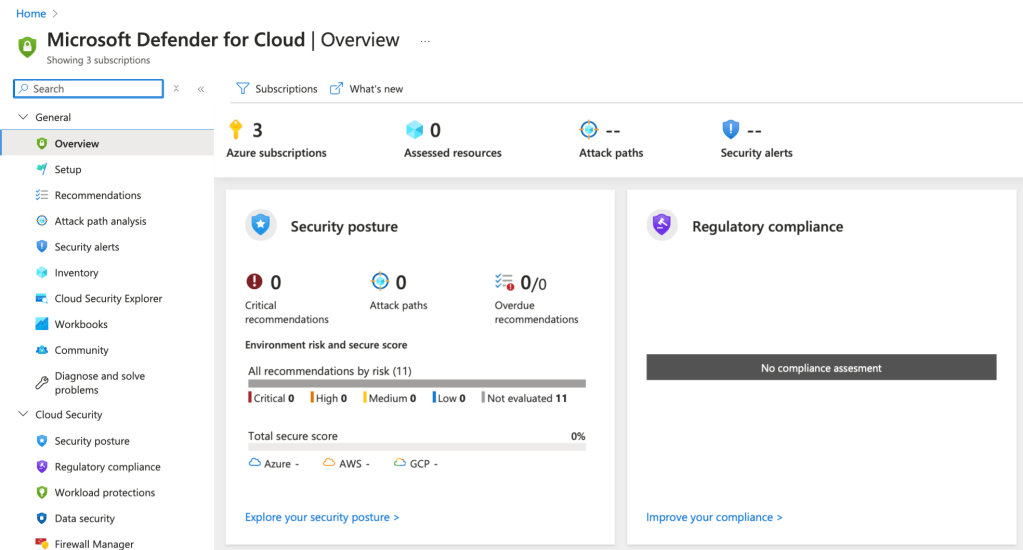
- You will be directed to the Defender for Cloud Overview dashboard, which provides a high-level view of your current security posture, regulatory compliance status, and active recommendations.
Step 2: Review the Secure Score
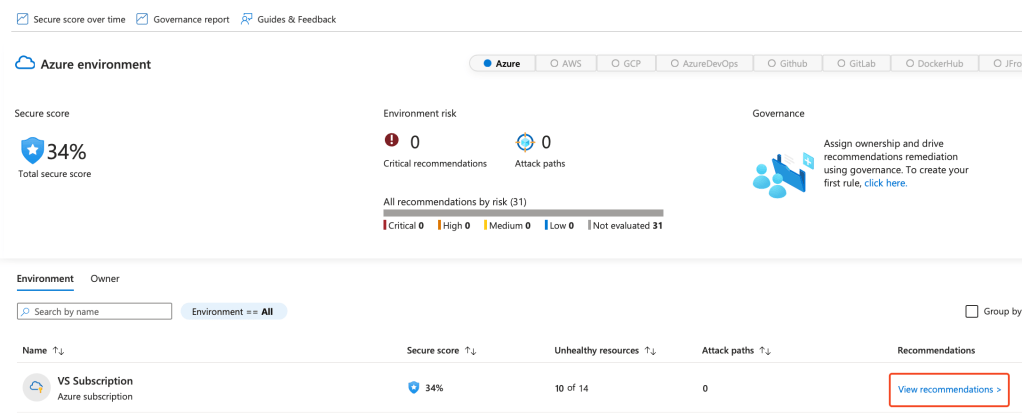
Secure Score is a central feature of Defender for Cloud that measures your current security posture and helps you prioritise actions.
- In the Microsoft Defender for Cloud portal, click on Security Posture in the left-hand menu.
- Review your overall Secure Score. The score is calculated based on completed and uncompleted security recommendations.
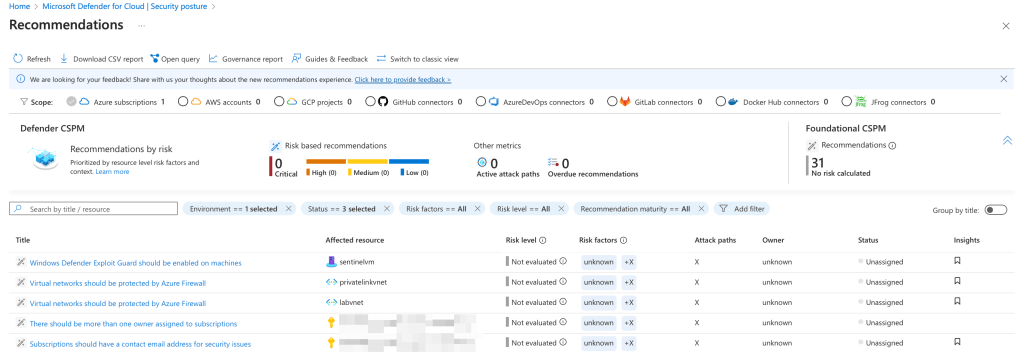
- Click on View Recommendations to see the underlying recommendations and their potential impact on your Secure Score.
- Use the recommendations as a roadmap to strengthen your environment. Higher-impact recommendations will contribute more significantly to improving your overall score.
Step 3: Enabling Workload Protections
Microsoft Defender for Cloud offers advanced protections for a variety of workloads, including virtual machines, databases, containers, and more.
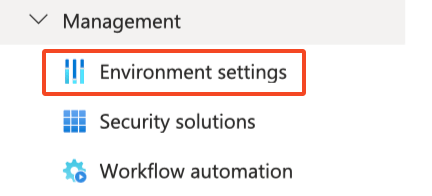
- In the Defender for Cloud menu, select Environment Settings.
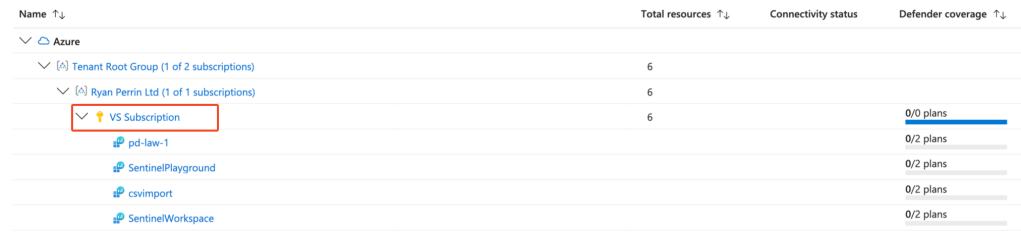
- Choose the subscription or workspace where you want to enable workload protections.
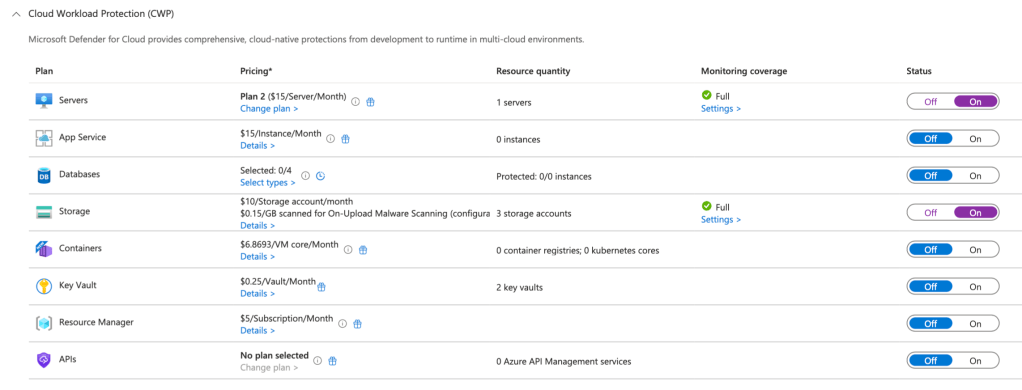
- Under Defender plans, turn on the relevant protections. For example:
- Servers: Enable Defender for Servers to gain real-time threat detection, just-in-time VM access, and vulnerability assessments.
- App Services: Turn on Defender for App Service to secure your web apps from common exploits and vulnerabilities.
- Storage: Enable Defender for Storage for anomaly detection and threat intelligence to protect against malicious access.
- Save your changes. Once enabled, Defender for Cloud will start monitoring and securing those workloads.
Step 4: Configuring Policies and Recommendations
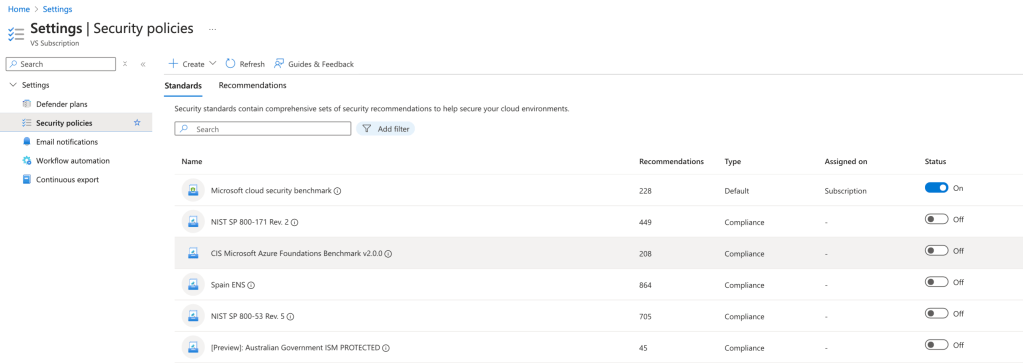
Defender for Cloud’s security policies and regulatory compliance templates help you adhere to industry standards and best practices.
- From the main menu, select Regulatory Compliance.
- By default, your subscriptions will be assigned the Microsoft Cloud Security Benchmark, which your environment will be evaluated against and provided recommendations for improvements.
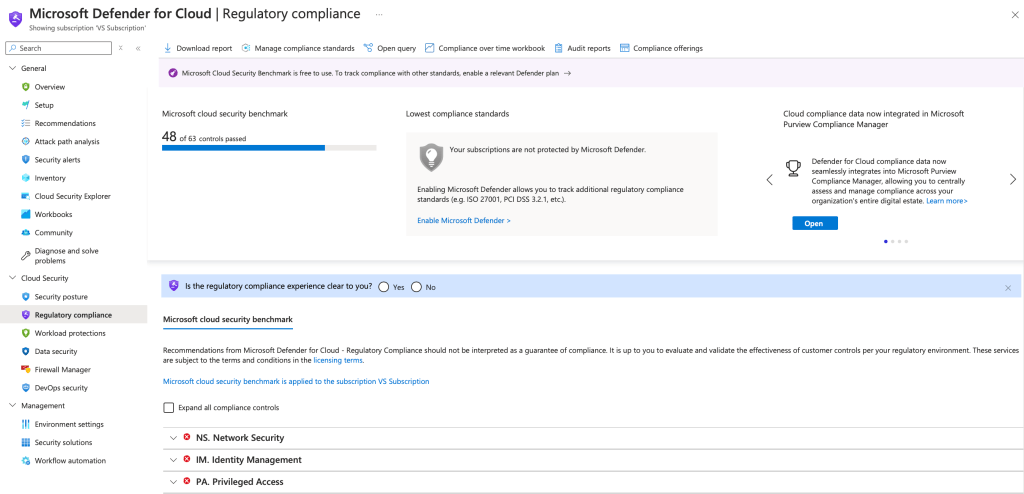
- Review and assign compliance standards (e.g., CIS, PCI-DSS) that align with your organisation’s requirements. Use Defender for Cloud to map resources to these standards and identify areas needing improvement.
- Customise compliance standards within the Security Policy section to align Defender recommendations with your security and compliance objectives, adjusting configurations at the subscription or management group level as needed.
Step 5: Implementing Recommendations and Remediations
After identifying areas of improvement, take action to secure your environment.
- Return to the Recommendations section under Security Posture.
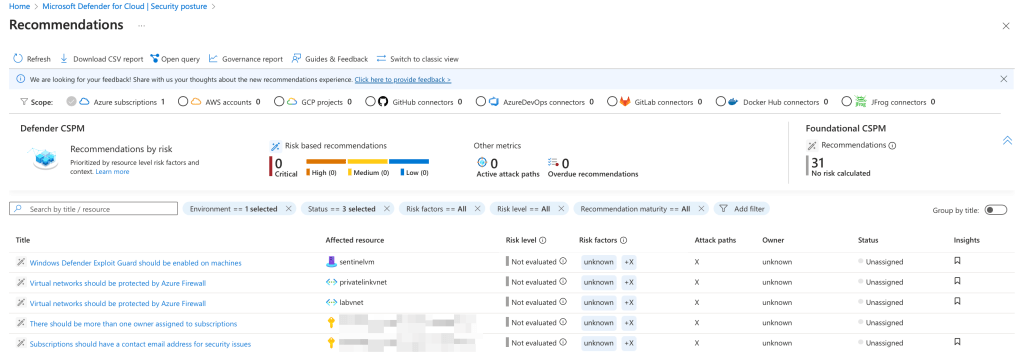
- Select a recommendation and review the guidance provided. Defender for Cloud often includes step-by-step instructions, CLI commands, or portal actions to resolve the issue.
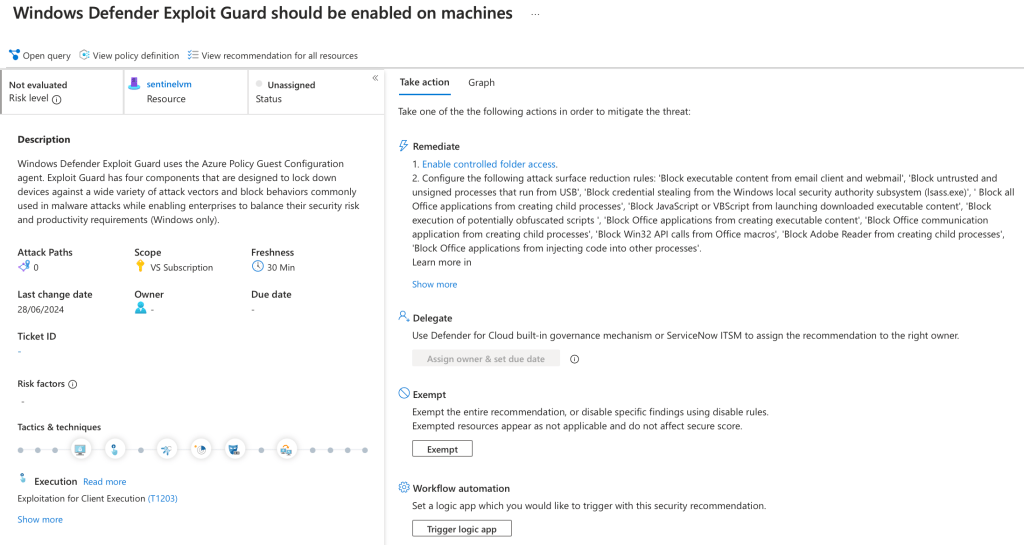
- Implement the recommended changes. For example:
- If a VM is missing Endpoint Protection, install the recommended antimalware extension.
- If a resource is publicly exposed, adjust Network Security Group rules or enable Just-In-Time access to limit exposure.
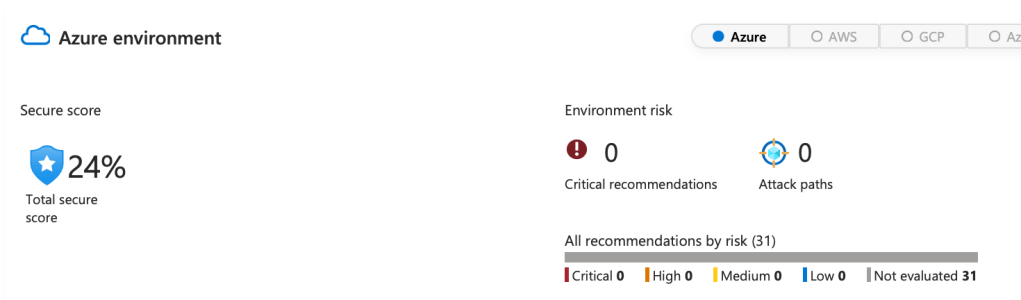
- Monitor your Secure Score and compliance dashboards to see the impact of your remediations.
Step 6: Continuous Monitoring and Alerting
Microsoft Defender for Cloud continuously monitors your resources and sends alerts for suspicious activities.
- Configure Alerts and Notifications by selecting your subscription in Environment Settings.
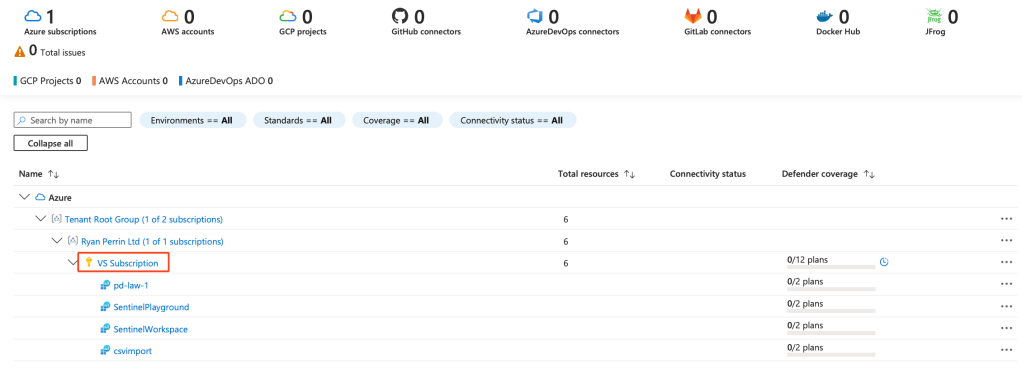
- Selecting Settings > Email Notifications, you can then set your email recipients, and notification severity types.
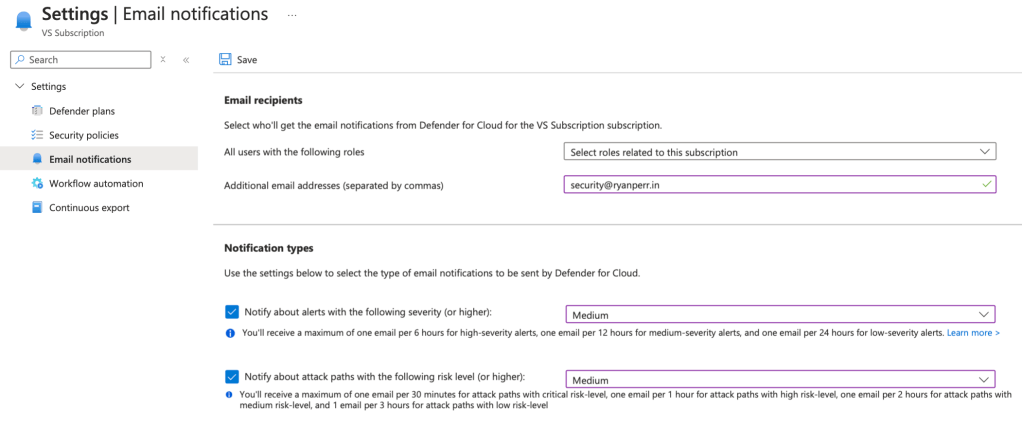
- Integrate alerts with your SOC tools, email notifications, or SIEM platforms (e.g., Microsoft Sentinel) to ensure timely responses.
- Regularly review alerts, investigate incidents, and apply necessary mitigations to maintain a strong security posture.
Step 7: Configure Continuous Export
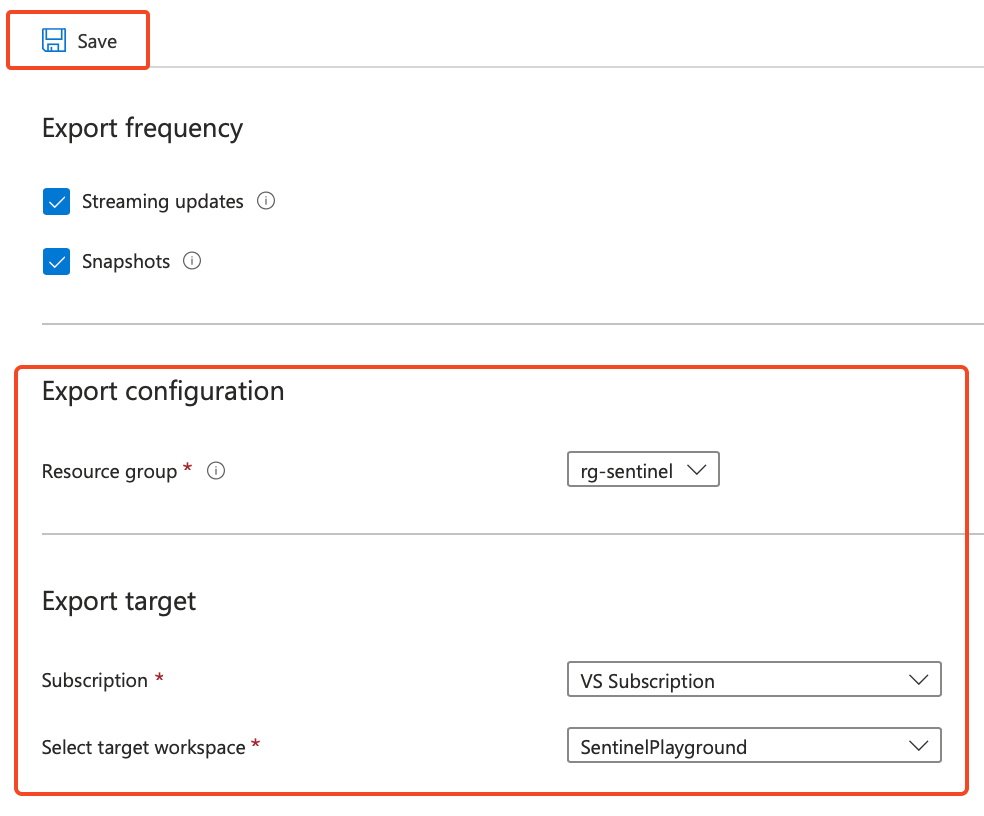
- Configure Continuous Export by selecting your subscription in Environment Settings.
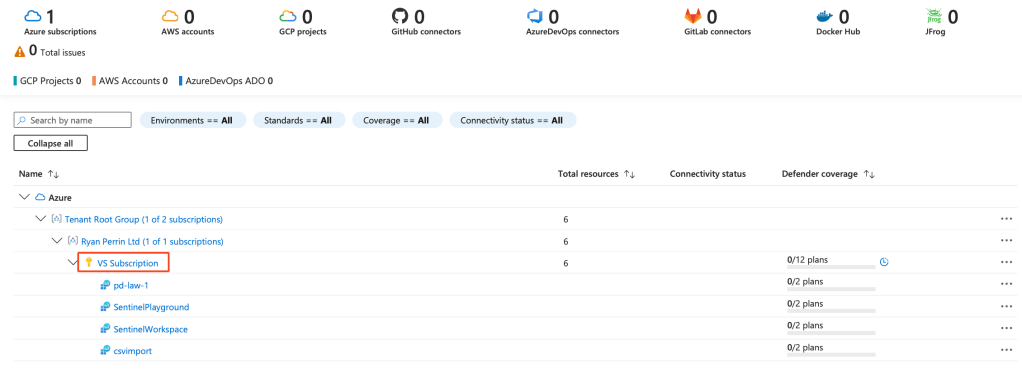
- Then click the Continuous export blade, and configure your export settings as necessary.
- Note, that exporting this data will incur costs within your Log Analytics/Sentinel workspace, monitor costs accordingly.
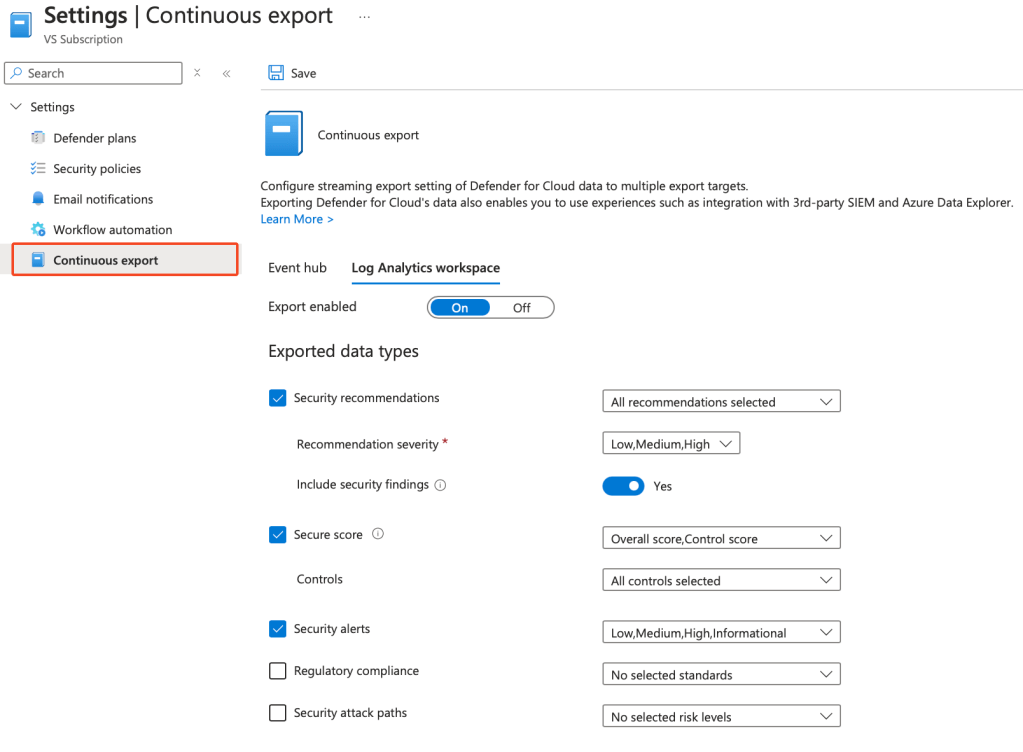
- Configure your export configuration, and hit Save.
Step 8: Validate Improvements
After implementing changes, verify that your security posture has improved.
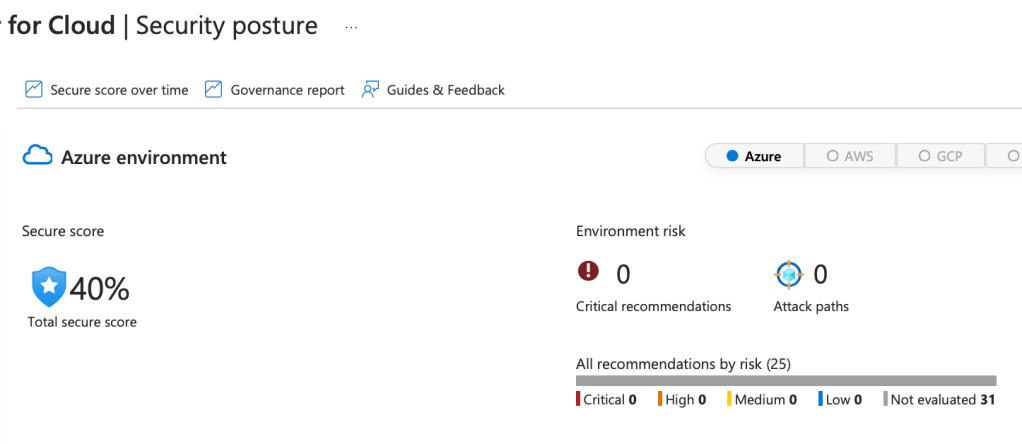
- Check your Secure Score again to confirm that completed recommendations have raised your score.
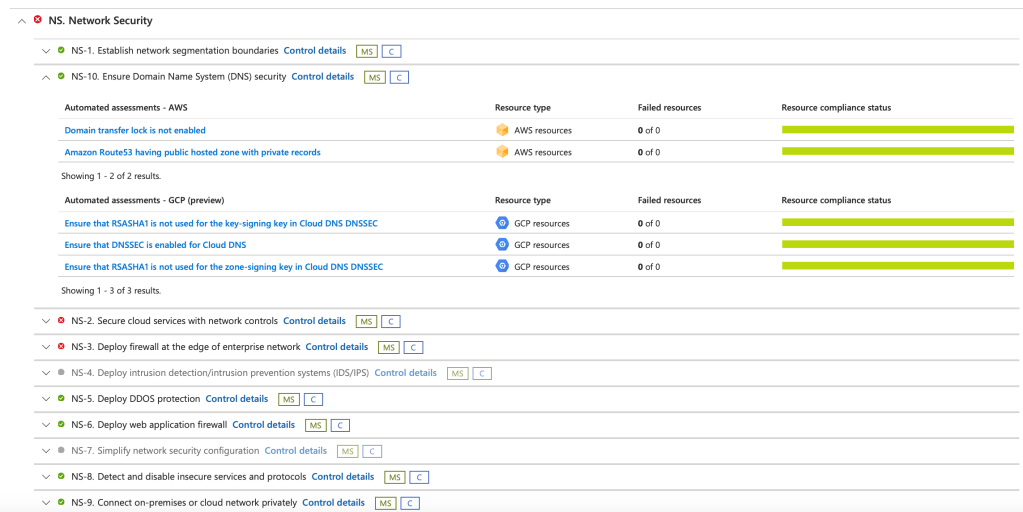
- Review regulatory compliance dashboards to ensure that previously non-compliant resources now align with industry standards.
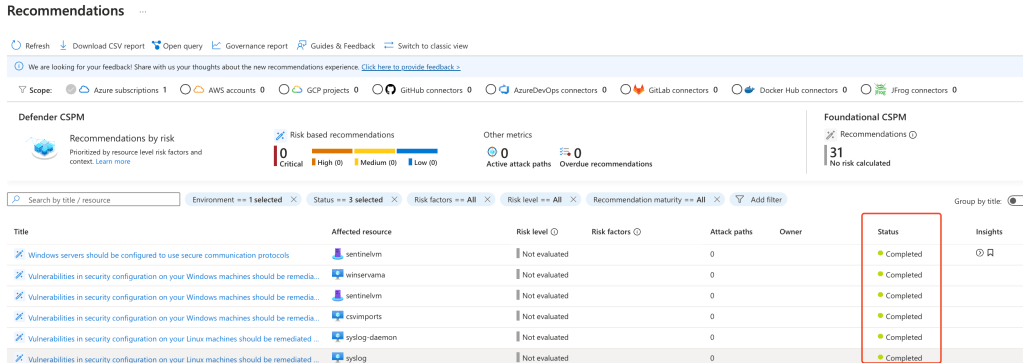
- Continuously iterate by reassessing recommendations and remediating newly identified risks as your environment evolves.
Optional: Integrating Multi-Cloud and On-Premises Resources
Microsoft Defender for Cloud can extend its protections to AWS, GCP, and on-premises workloads.
- In the Setup page, you can onboard external cloud accounts.
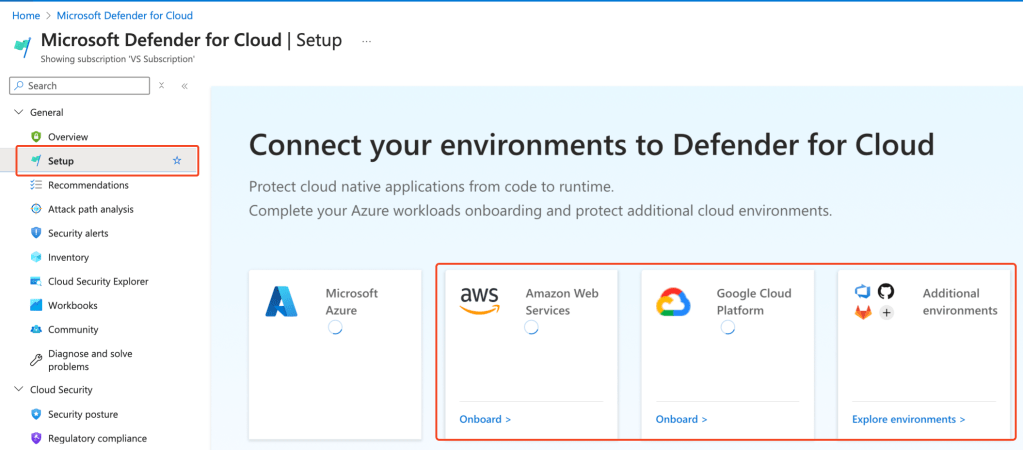
- Once integrated, you can manage and secure these resources side-by-side with your Azure workloads.
- Apply the same Secure Score and recommendations framework to maintain a unified, consistent security posture across all environments.
Clean Up (If Needed)
If you’ve enabled trial features or deployed test resources, you may want to disable them to avoid unnecessary charges.
- Return to Environment Settings and toggle off any Defender plans you no longer need.
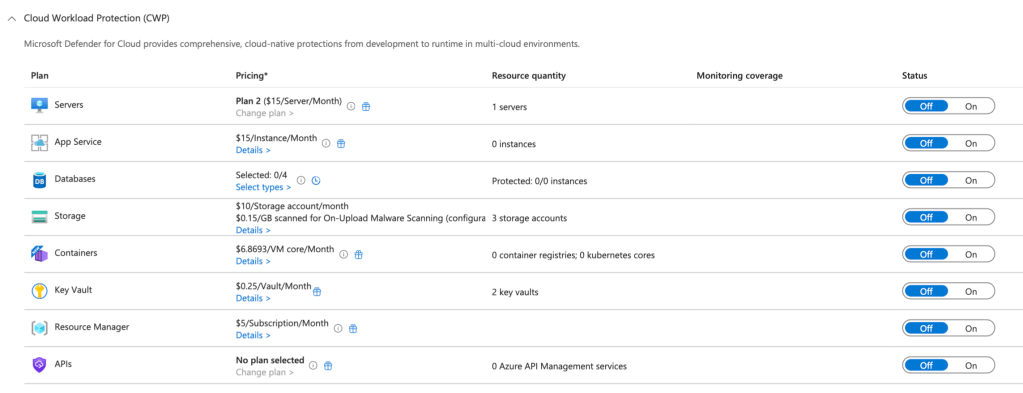
- Remove test resources (e.g., VMs, storage accounts) from your resource group if they are no longer required.
Conclusion
Congratulations!
You’ve successfully explored Microsoft Defender for Cloud, reviewed your Secure Score, enabled workload protections, implemented security recommendations, configured continuous export, and improved your overall security posture.
This powerful solution offers continuous assessment, intelligent threat detection, and actionable guidance to ensure that your cloud ecosystem remains resilient against evolving threats.
Resources and Next Steps with Microsoft Defender for Cloud
To continue your journey with Azure Private Link and Private Endpoints, explore the following resources:
- Microsoft Defender for Cloud Documentation: Microsoft Defender for Cloud Documentation
- Microsoft Security Community: Microsoft Security Community
- Azure Security Blog: Azure Security Blog
These resources provide comprehensive guidance, best practices, and support to help you continually refine and enhance your cloud security strategy.
I would love to hear your thoughts on this blog post! Your feedback helps me improve and deliver more valuable content. Connect with me on LinkedIn or drop me an email—links are at the top and bottom of this page.
To stay updated with my future blog posts, subscribe by entering your email in the box below. Thank you for taking the time to explore Microsoft Defender for Cloud, and I hope you find your journey into enhancing your cloud security posture as rewarding as I have.
Stay Secure,
Ryan Perrin
 RYAN PERRIN
Leave a comment