
Contents
- Prerequisites
- Support and Resources
- Objective
- Azure Portal Access
- Creating a Linux VM
- Configuring your Linux VM
- Configuring Data Collection Rules in Azure Monitor
- Monitoring the Logs
- Syslog Optimisation
- Next steps with Microsoft Sentinel
In our upcoming blog post, “Step-by-Step Guide for Deploying a Syslog Collector to ingest into Microsoft Sentinel”, we will explain the uses of Syslog, and guide you through the practical steps of setting up a Syslog collector, creating a Linux VM, and configuring Azure Monitor to ingest logs into Microsoft Sentinel.
You’ll learn how to install the Syslog Content Hub solution, develop necessary scripts, test and optimise your configuration to ensure seamless integration and effective security monitoring.
Stay tuned for this exciting instalment as we dive into the hands-on aspect of deploying and configuring a Syslog collector. Subscribe to our updates, and let’s continue our exploration of this cutting-edge security solution!
Prerequisites
- Entra ID License and Tenant: It’s essential to have an Entra ID License and an Azure tenant. If you’re not currently in possession of an Azure tenant, you can create one and receive free credits by visiting: Azure Free Account.
- Active Azure Subscription for Microsoft Sentinel: Utilising Microsoft Sentinel requires an active Azure subscription. If you haven’t set one up yet, options include signing up for a free trial or a pay-as-you-go subscription via the Azure portal. If you’ve already registered through the provided link for the Azure free account, you’ve completed this step.
- Azure AD Permissions: To configure Microsoft Sentinel effectively, adequate permissions within Azure Active Directory (Azure AD) are essential. Ideally, holding the role of a Global Administrator is necessary for activating most components within Microsoft Sentinel. Alternatively, having the role of a Security Administrator may suffice for managing the required settings, but keep in mind that the Global Administrator role offers comprehensive access and control.
- Microsoft Sentinel Workspace: A Microsoft Sentinel Workspace built and configured ready to utilise in your environment. If you need to build a Sentinel workspace, you can follow my blog post here on creating your Microsoft Sentinel instance: Microsoft Sentinel: Your First Instance – RYAN PERRIN
Support and Resources
In addition to the key resources already mentioned, there are several other avenues where users can find comprehensive support and valuable information regarding Microsoft Sentinel. These resources are essential for both beginners and experienced users looking to enhance their understanding and usage of the tool. Here’s a detailed overview:
Microsoft Sentinel Documentation: The Microsoft Sentinel documentation on Microsoft Learn is the primary source for official information. It covers everything from basic setup and configuration to advanced features. This documentation is regularly updated and includes tutorials, quickstart guides, and detailed articles on specific functionalities.
Microsoft Sentinel Community Hub: The Microsoft Sentinel Community Hub is a valuable resource for engaging with other Sentinel users and experts. Here, you can participate in discussions, ask questions, and share insights. The community is a great place to learn from real-world experiences and stay updated on best practices and new features.
Microsoft Sentinel Blog: The Microsoft Sentinel Blog on the Microsoft Community Hub is an excellent resource for staying informed about the latest updates, feature releases, and insights from the Sentinel team. It’s a platform where you can find in-depth articles, case studies, and announcements directly from Microsoft professionals.
By leveraging these resources, users can effectively enhance their skills, resolve challenges, and make the most out of their Microsoft Sentinel experience. Whether you’re looking for self-guided learning, community support, or professional assistance, these resources cover all bases for comprehensive support.
Objective
As the assigned Cyber Security Engineer, your objective is to establish a Syslog service for your organisation’s cyber security infrastructure.
- Begin by installing the Syslog Content Hub solution.
- Proceed with the creation of a Linux VM to support your security monitoring activities.
- Next, configure Azure Monitor, specifically setting up Data Collection Rules (DCRs) to ensure proper data flow and analysis.
- Develop scripts necessary to prepare the machine, ensuring all configurations and settings are optimised for security and performance.
- Finally, test the configuration by posting Common Event Format (CEF) messages and monitoring the heartbeat in Azure Monitor to verify that the setup is functioning correctly and efficiently.
Azure Portal Access
Firstly, we need to visit https://portal.azure.com and Sign in using your Administrative Credentials. We will install the Syslog content hub solution in our Sentienl workspace.
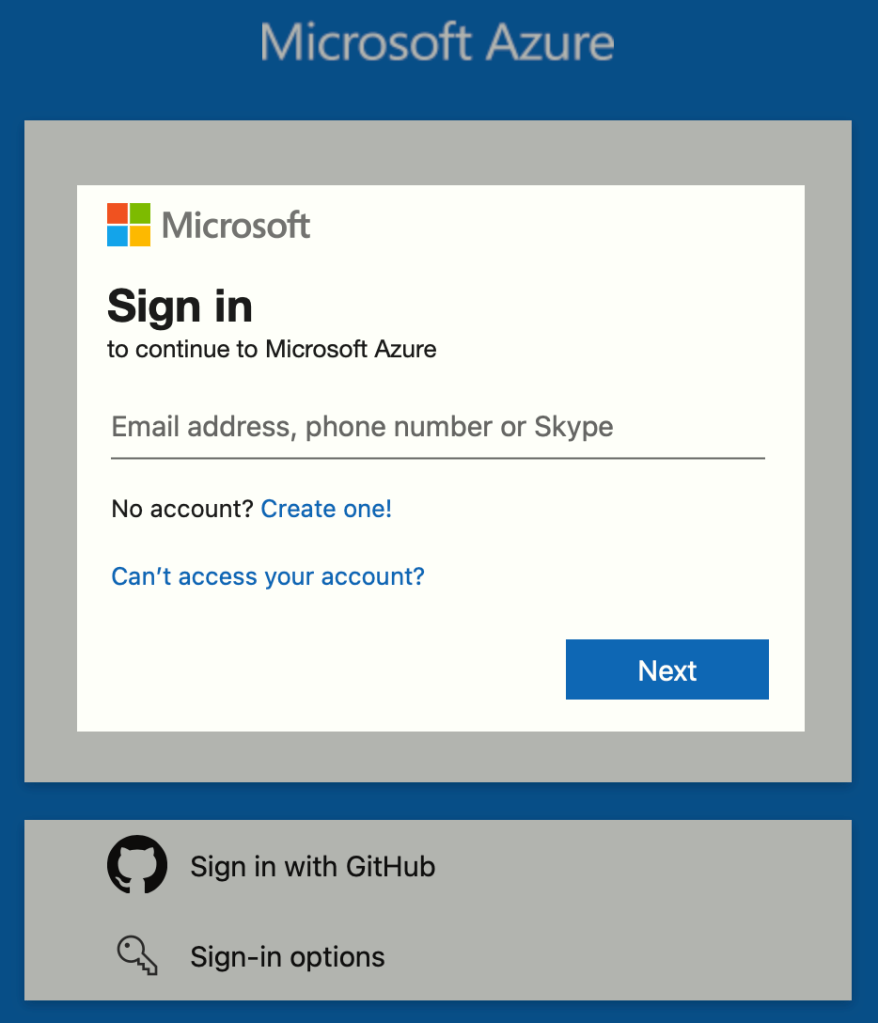
Type ‘Microsoft Sentinel’ in the search bar:

Now load your Sentinel workspace, like so:

Scroll down on the left-hand side till you find ‘Content hub’ and search for ‘Syslog’, select this.

On the right-hand side ‘Syslog’ context menu, click ‘Install’ at the bottom:

This concludes the steps for installing the ‘Syslog’ content hub solution, now we will move onto creating our Syslog collector virtual machine.
Creating a Linux VM
Search for ‘Virtual machines’ in the top search bar:

Hit ‘Create Azure virtual machine’:
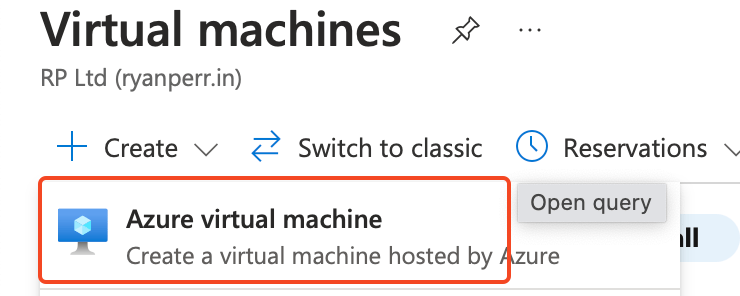
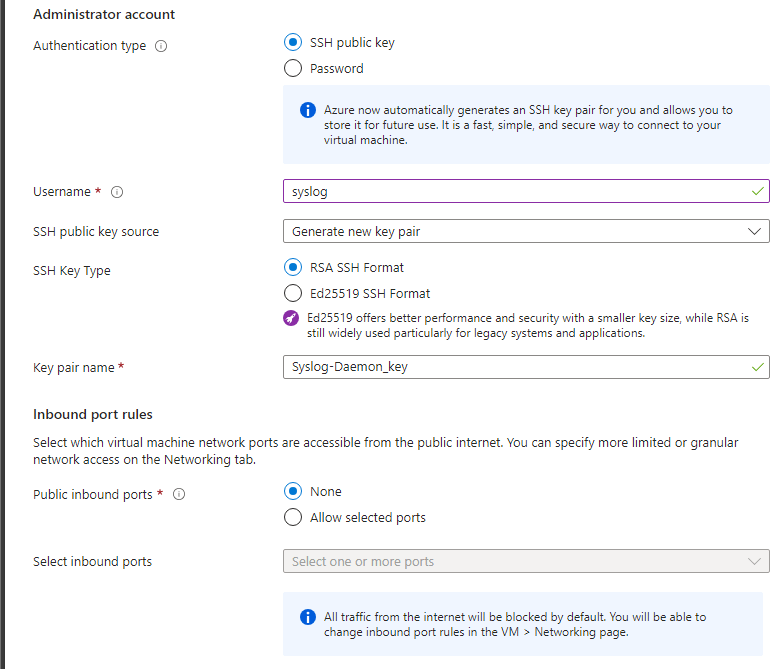
Fill in the details as required for your organisation, you can use mine as a template, and you must run Linux, in this example we are using Ubuntu 22.04.

Scrolling down the creation wizard, again, fill out to your company’s requirements, or follow my example. We will be utilising SSH public key for authentication, and disabling public network access, which we will enable shortly.
On the next page, you can specify disk specifics, I’ll be leaving as default:

Now on the Networking page, make sure to have a Public IP, and disable ‘Public inbound ports’:

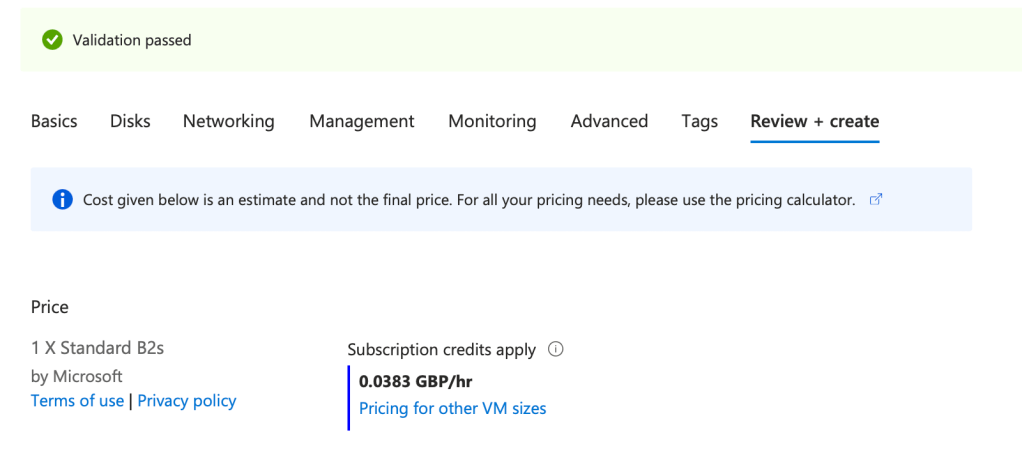
Review your VM and then hit ‘Create’:
Now, you will need to access the Network Security Group associated with the NIC, click into ‘Inbound security rules’, and hit ‘Add’:

Configure the rule to allow SSH as follows:

This concludes the steps of creating your Linux VM. Now we will configure the data collection rules (DCR) in Azure Monitor.
Configuring Data Collection Rules in Azure Monitor
Type ‘Monitor’ in the search bar to access Azure Monitor:

Scroll down on the left-hand side to ‘Data Collection Rules’:
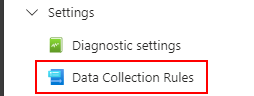
Hit ‘Create’:

Fill out the details as required for your organisation, selecting ‘Linux’ as the Platform type:

On the next screen hit ‘Add resources’, and select your Syslog collector VM:
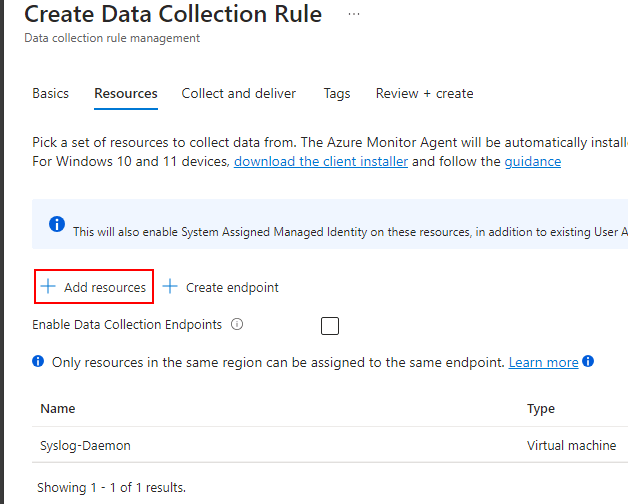
Now, select ‘Linux Syslog’ as the data source type, and leave the minimum log level as ‘LOG_DEBUG’ – at the end of the blog I will show steps for optimising ingestion.
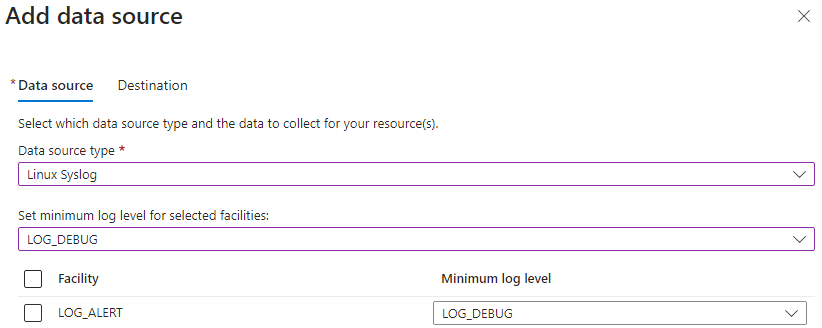
Now, add your Sentinel workspace as the destination:

Review, and then hit ‘Create’:

This concludes the steps for configuring Azure Monitor. Now we move onto configuring the Linux machine.
Configuring your Linux VM
Grab the key you downloaded during the Virtual Machine creation process, and paste it within your .ssh folder in your user drive, “C:\Users\USERNAME\.ssh”.

Now run the following within PowerShell:
ssh -i C:\Users\USERNAME\.ssh\newkey.pem USERNAME@HOST IP ADDRESSIf you receive the following error, you may need to generate the key again:

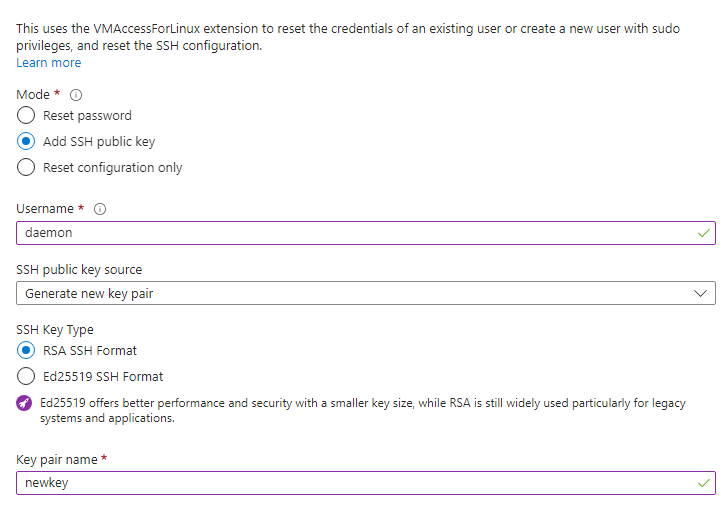
Load your virtual machine overview page and scroll to ‘Reset password’ in the left-hand context menu:
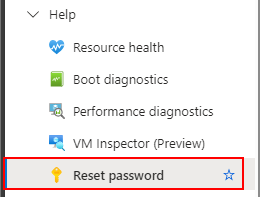
Type in a username (this must be different from your original), a key name, and then hit reset:
Hit ‘Download + Create’:
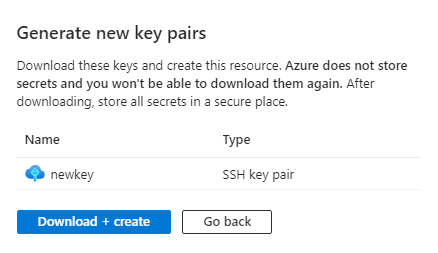
Copy the file and paste it within your .ssh folder in your user drive, “C:\Users\USERNAME\.ssh”.

Now run the following within PowerShell, replacing “USERNAME” with your user for both the drive and key:
ssh -i C:\Users\USERNAME\.ssh\newkey.pem USERNAME@HOST IP ADDRESSThis will then authenticate your SSH session:

To prepare the Linux VM for Syslog collection and forwarding to Azure, run this script in Terminal on your Linux VM:
sudo wget -O Forwarder_AMA_installer.py https://raw.githubusercontent.com/Azure/Azure-Sentinel/master/DataConnectors/Syslog/Forwarder_AMA_installer.py&&sudo python Forwarder_AMA_installer.pyNote: If you encounter an error, you may need to substitute “python” above with “python3”.
If successful, you will then be prompted with the following message:

Monitoring the Logs
Now, load your Sentinel workspace and click into ‘Logs’, you can run a check on the ‘Heartbeat’ table using the below command to check your Azure Monitoring Agent is communicating from your Linux VM to Azure:

You should also now see Syslog messages being received in the ‘Syslog’ table, achieving what we set out in the objective of this blog:

This concludes the steps for configuring the Syslog collector VM, which should hopefully be successful on your side.
Syslog Optimisation
I will now run through some steps you can perform to tweak, and optimise your Syslog configuration.
You can optimise the collection of specific log facilities and severity within Data Collection Rules so only required messages are received.
Load your DCR rule and click into your ‘Linux Syslog’ data source:

Set the minimum log level to ‘none’, and then specify which faciltiy to ingest, usually the default for remote Syslog messages is LOCAL5, however, this depends on each service and organisation:
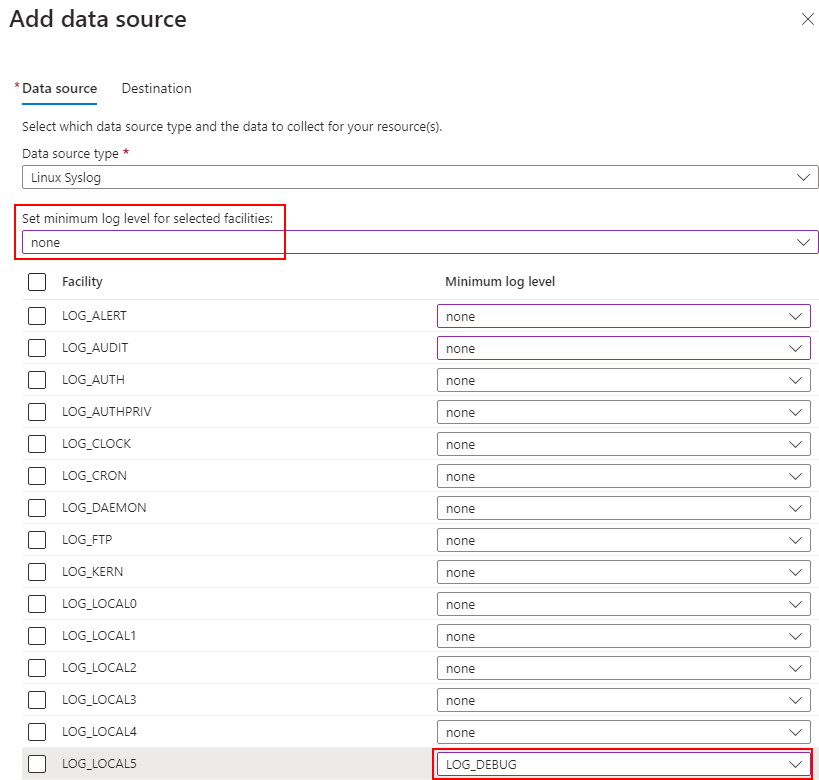
You can then run this test message via SSH on your Linux box:
logger -p local5.info "This is a test message"You can see here that the test message has then be received, after making changes to the Data Collection Rule to only include facility LOCAL5.

Reduce Log Cache
You can reduce the log cache to 7 days, to lower disk space usage. Configure ‘/etc/logrotate.conf’ as per the below:
| /etc/logrotate.conf |
| # see “man logrotate” for details # rotate log files weekly daily # use the adm group by default, since this is the owning group # of /var/log/syslog. su root adm # keep 7 days worth of backlogs rotate 7 # create new (empty) log files after rotating old ones create # use date as a suffix of the rotated file #dateext # uncomment this if you want your log files compressed #compress # packages drop log rotation information into this directory include /etc/logrotate.d # system-specific logs may be also be configured here. |
Reduce Log Volume
Adjust the default config to prevent storing logs in /var/log/, while still forwarding events to Azure Monitor Agent. If network drops, this will still store the logs in the AMA cache.
Change the snippet within ‘/etc/rsyslog.d/50-default.conf’ from the below:
| /etc/rsyslog.d/50-default.conf |
| auth,authpriv.* /var/log/auth.log *.*;auth,authpriv.none -/var/log/syslog |
To the following:
| /etc/rsyslog.d/50-default.conf |
| auth,authpriv.* /var/log/auth.log *.*;local4.none;local5.none;auth,authpriv.none -/var/log/syslog |
We have now reached the end of our discussion on optimising the Syslog collectors, successfully achieving the goals we set out at the beginning of this blog.
This also concludes the post ‘Step-by-Step Guide for Deploying a Syslog Collector to ingest into Microsoft Sentinel’. Thank you for taking the time to read through this post. I hope it has been an informative and enriching experience as you explore the capabilities of Microsoft Sentinel.
Resources and Next Steps with Microsoft Sentinel
To get started or advance your journey with Microsoft Sentinel, Microsoft’s official documentation is an invaluable resource.
It offers detailed guides and best practices that cater to both beginners and seasoned professionals.
The community forums are also a treasure trove of insights, where you can engage with other users, share experiences, and find solutions to common challenges.
Whether you’re looking to implement Sentinel for the first time or aiming to optimise your current setup, these resources can guide you towards a more secure and resilient cyber security posture, I will place links to the sources below.
Microsoft Sentinel Documentation: Microsoft Sentinel documentation | Microsoft Learn
Microsoft Sentinel Community Hub: Microsoft Sentinel – Microsoft Community Hub
Microsoft Sentinel Blog: Microsoft Sentinel Blog – Microsoft Community Hub
I’m eager to hear your thoughts on the blog post and would greatly value your feedback. Feel free to connect with me on LinkedIn or drop me an email – you’ll find the links to both at the top and bottom of this page 🙂
Interested in staying updated with my latest releases? Don’t miss my future blog posts. Subscribe by entering your email in the box below, and stay tuned for every new update!
Thank you for spending a part of your day here. I hope you find your journey into Microsoft Sentinel as rewarding as I have.
Stay Sentinel,
Ryan
 RYAN PERRIN
Leave a comment